Overview
Navigation Bars
The navigation bars are located at the top and on the left of every page in the Gorilla portal.
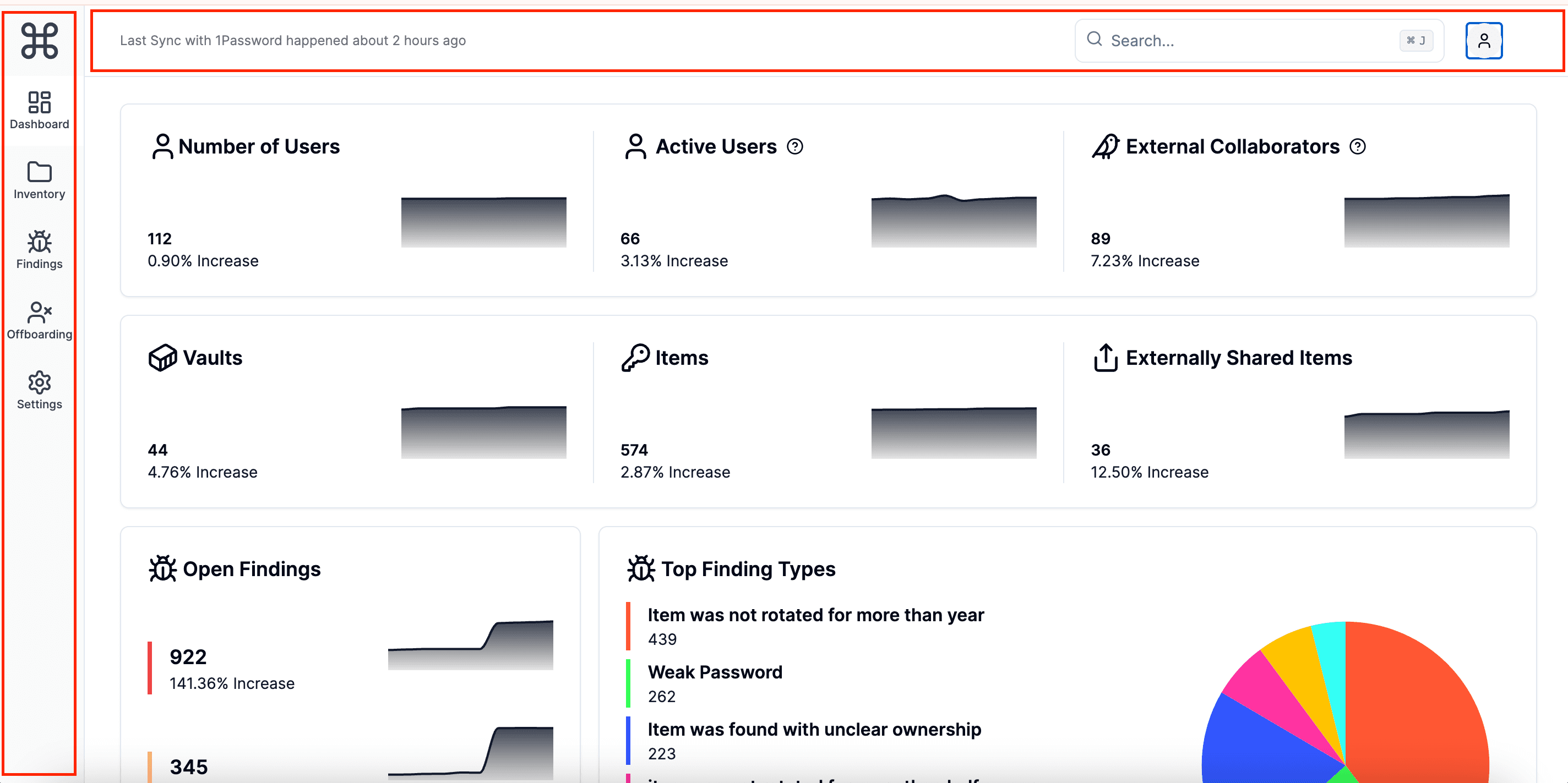
Left Navigation Bar
From the left navigation bar, you can navigate between different sections of the portal:
- Dashboard: The main hub providing a summary and key metrics of your 1Password data.
- Inventory:
- Users: Information about all users and their access levels.
- Devices: List and details of devices that have accessed your vaults.
- Groups: Details about user groups and their permissions within the organization.
- Vaults: Overview of all vaults, including access and activity details.
- Items: Information about specific items stored in the vaults.
- External Collaborators: Details about external collaborators who have access to your data.
- Findings: Insights and reports on potential security issues and vulnerabilities.
- Offboardings: Tools to manage the secure offboarding of employees, including data rotation.
- Settings: Configuration options for the portal to tailor it to your organizational needs.
Top Navigation Bar
From the top navigation bar, you can:
- View Last Sync Information: Displays the last synchronization time with 1Password, ensuring you are working with the latest data.
- Use QuickSearch: Quickly search across all elements in the inventory. This can be accessed using the hot key
⌘ J(Command + J). When a search is performed, it will lead you directly to the detail page of the relevant item, user, vault, etc. - Access User Profile: Click the user icon to:
- View your profile settings and other personal and organization configurations.
- Log out of the Gorilla portal.
QuickSearch
QuickSearch lets you search for anything within the Gorilla portal. This feature is designed to help you find specific items, users, vaults, and more with ease.
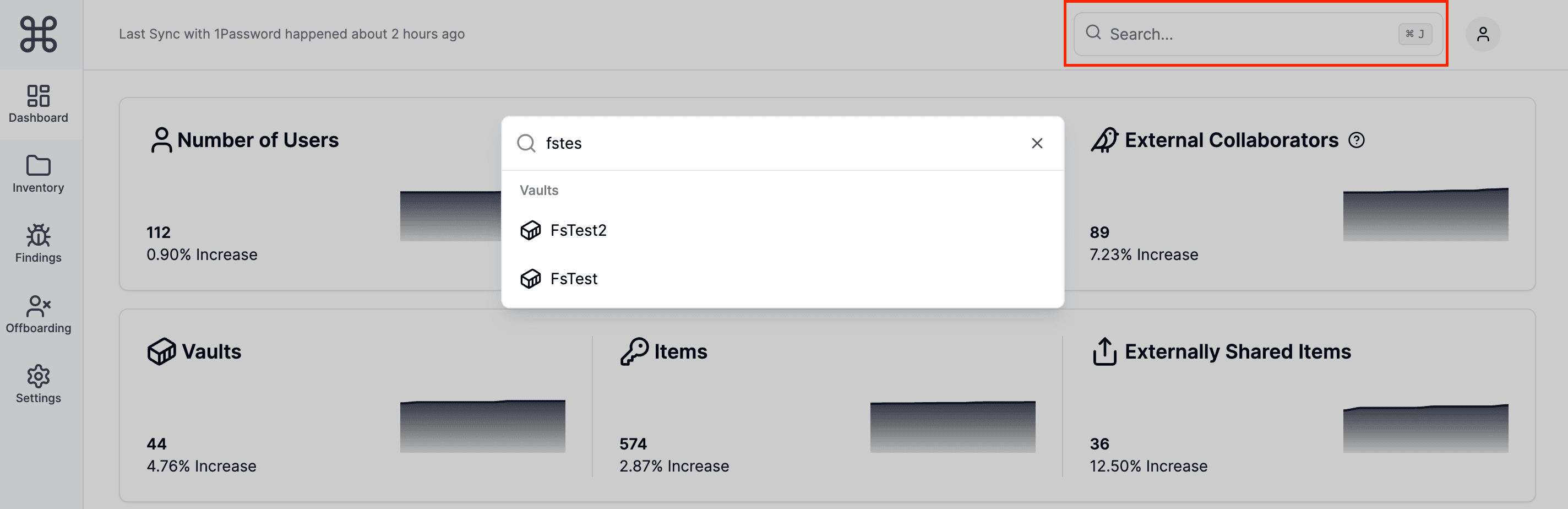
How to Use QuickSearch:
- From anywhere in the Gorilla portal, click the QuickSearch icon or text field on the right side of the top navigation bar, or press
⌘ J(Command + J). - Start typing your query. The QuickSearch will auto-complete and suggest results as you type.
- 🚧 Most QuickSearch suggestions are not case sensitive.
- Click a result or navigate with the arrow keys and press Enter to open it.