Off-boardings Page
Overview
The Off-boardings page allows you to initiate and manage the secure off-boarding of employees from your organization. This ensures that secrets the employee had access to are not susceptible to leaks, maintaining the security and integrity of your organization's data.
Initiating an Off-boarding Case
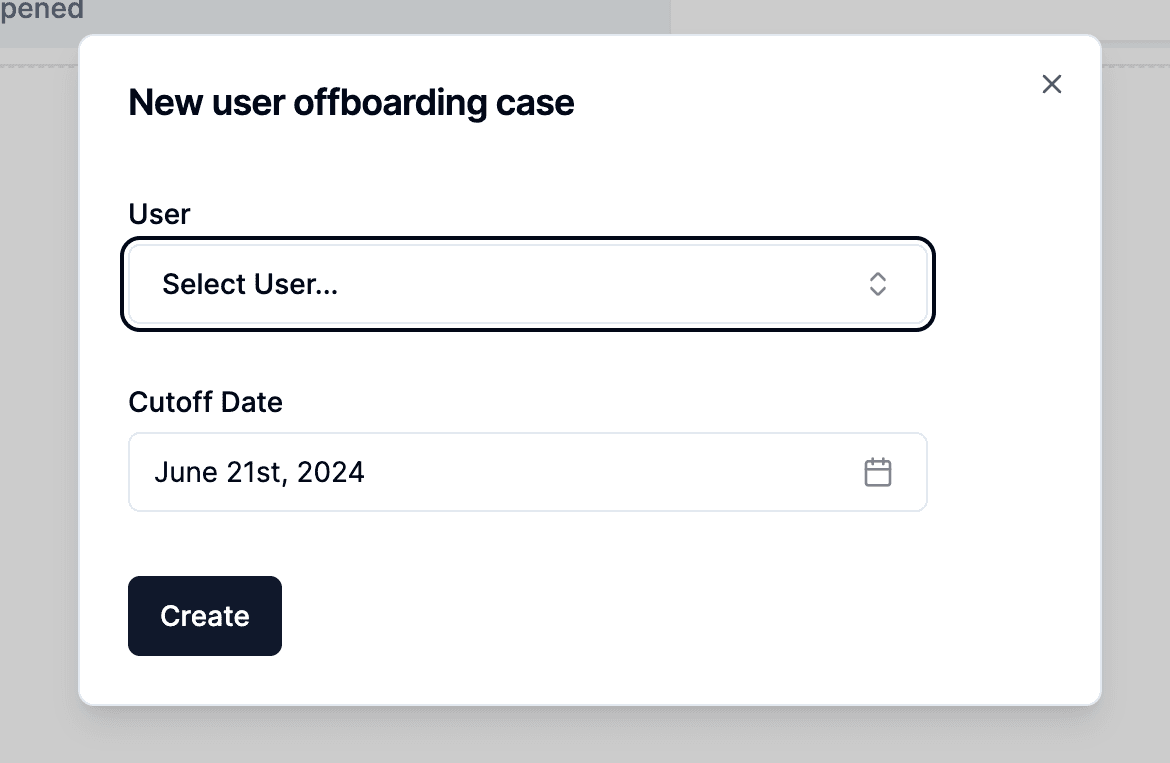
- New Off-boarding Case: Click the New Off-boarding Case button to initiate a new off-boarding process.
- Select User: Choose the user you want to offboard from the dropdown menu.
- Cutoff Date: Set the cutoff date for the user's access.
- Create: Click Create to start the off-boarding process.
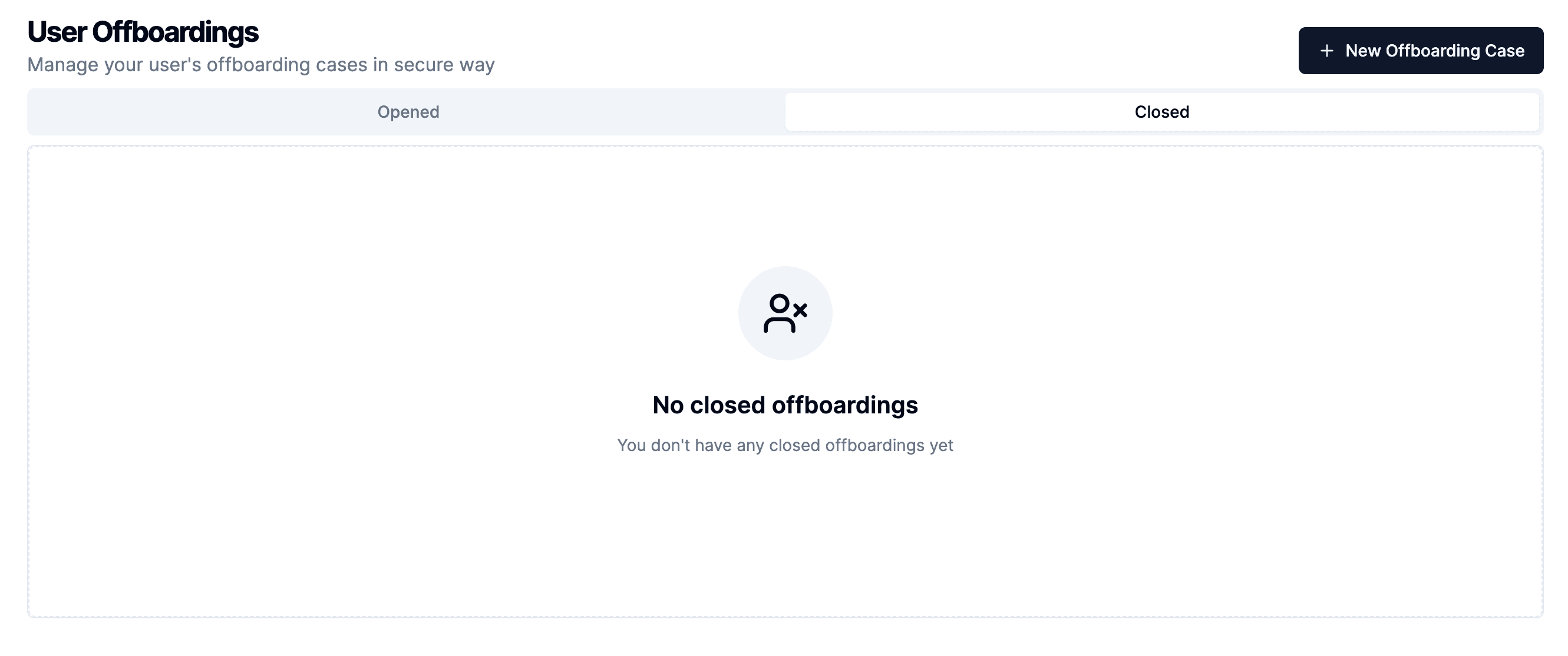
Off-boarding Cases Overview
The Off-boardings page lists all ongoing and completed off-boarding cases. Each case displays the user's email and the cutoff date for their access. You can switch between the Opened and Closed tabs to view active and completed off-boarding cases.
Detailed Off-boarding View
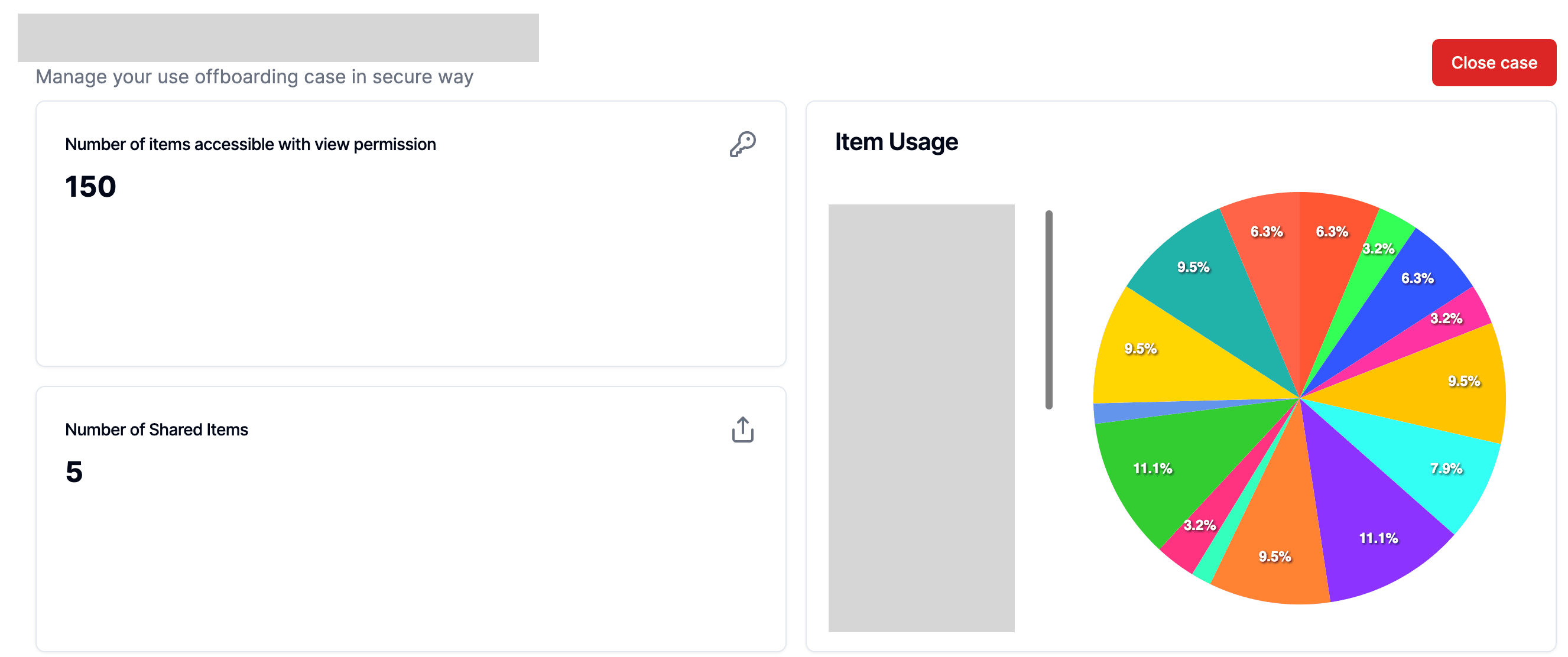
Clicking on a user in the off-boarding list will take you to the detailed off-boarding view. This page provides comprehensive insights and tools to manage the off-boarding process effectively:
User Insights
- Number of Items Accessible with View Permission: Displays the total number of items the user can currently view.
- Number of Shared Items: Shows how many items the user has shared.
Item Usage
A pie chart provides a visual representation of the user's item usage, categorized by different types of items or vaults. This helps you understand what kind of resources the user had access to.
Historic User Access
The security graph is a crucial feature that visually represents all user access over time. It includes both current and historic access, providing a clear and comprehensive overview of the user's interactions with different resources. This graph is essential for understanding the full scope of the user's access and ensuring that all necessary steps are taken to secure the data.
- Current Access: Solid lines indicate the user's current access to items.
- Historic Access: Dashed lines show the user's historic access to items.
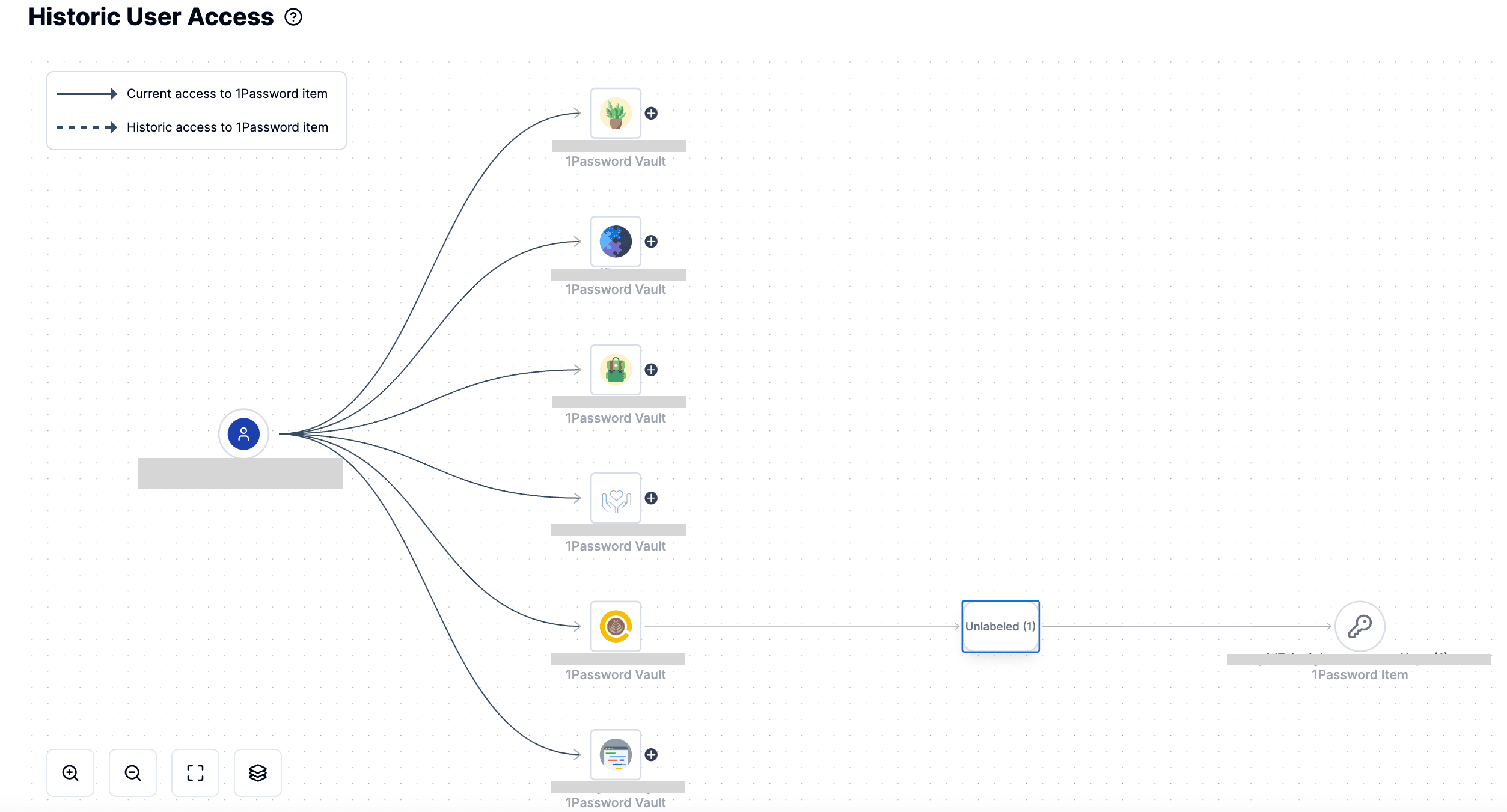
Current and Historic Access of User
A detailed list of all resources the user has accessed, both currently and historically. Each resource entry includes:
- Name: The name of the resource.
- Rotation Date: The last date the resource's password was rotated.
- Owner: The owner of the resource.
Actions
- Rotate Items: You can rotate the items to ensure the user no longer has access with old passwords. This action is critical to maintaining security and ensuring that no unauthorized access is possible after the user has been offboarded.
- Close Case: Once all necessary actions have been taken, you can close the off-boarding case by clicking the Close case button.
Importance of the Security Graph
The security graph is a pivotal tool for providing a complete overview of a user's access history. By visualizing both current and historic access, it enables administrators to identify any potential security gaps and take proactive measures to secure the organization's data.