Settings Page
The Settings page allows you to manage various aspects of your account and organization within Gorilla. This page provides options to update your personal information, change your password, configure two-factor authentication, update organization details, select 1Password clients, manage your identity provider, and oversee your organization’s users and invites.
Manage Your Account
Update Your Account
You can update your account name using the following form:
- Name: Enter your new account name.
- Save: Click to save the changes.

Change Password
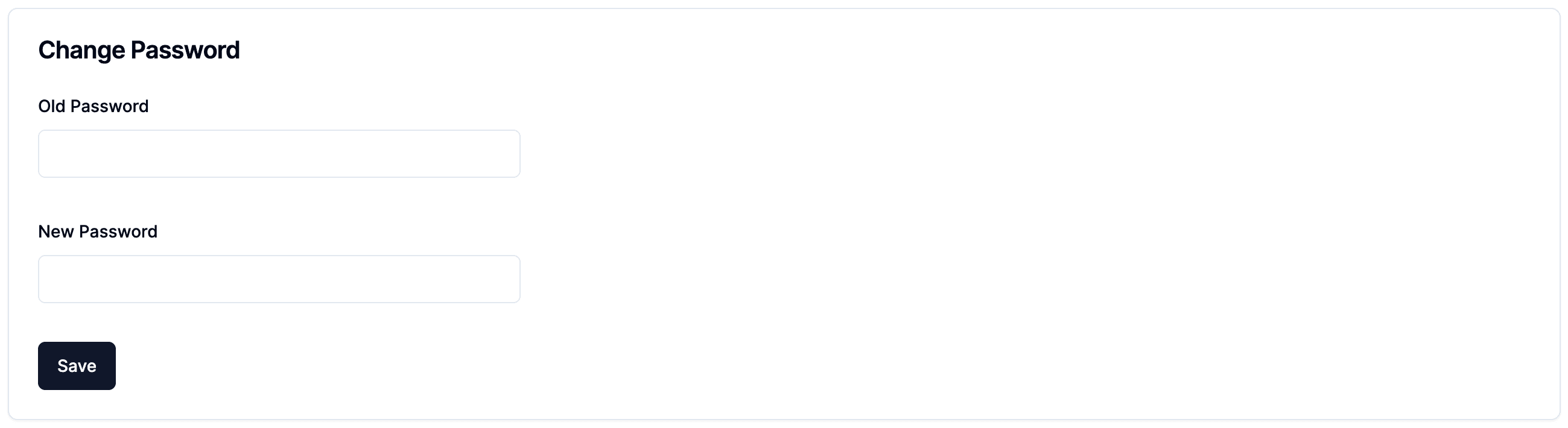
You can change your account password using the following form:
- Old Password: Enter your current password.
- New Password: Enter your new password.
- Save: Click to save the changes.
Two-Factor Authentication
Enable or disable two-factor authentication for added security:
- Two-Factor Authentication Status: Indicates if two-factor authentication is enabled.
- Disable: Click to disable two-factor authentication if it is currently enabled.

Update Your Organization Details
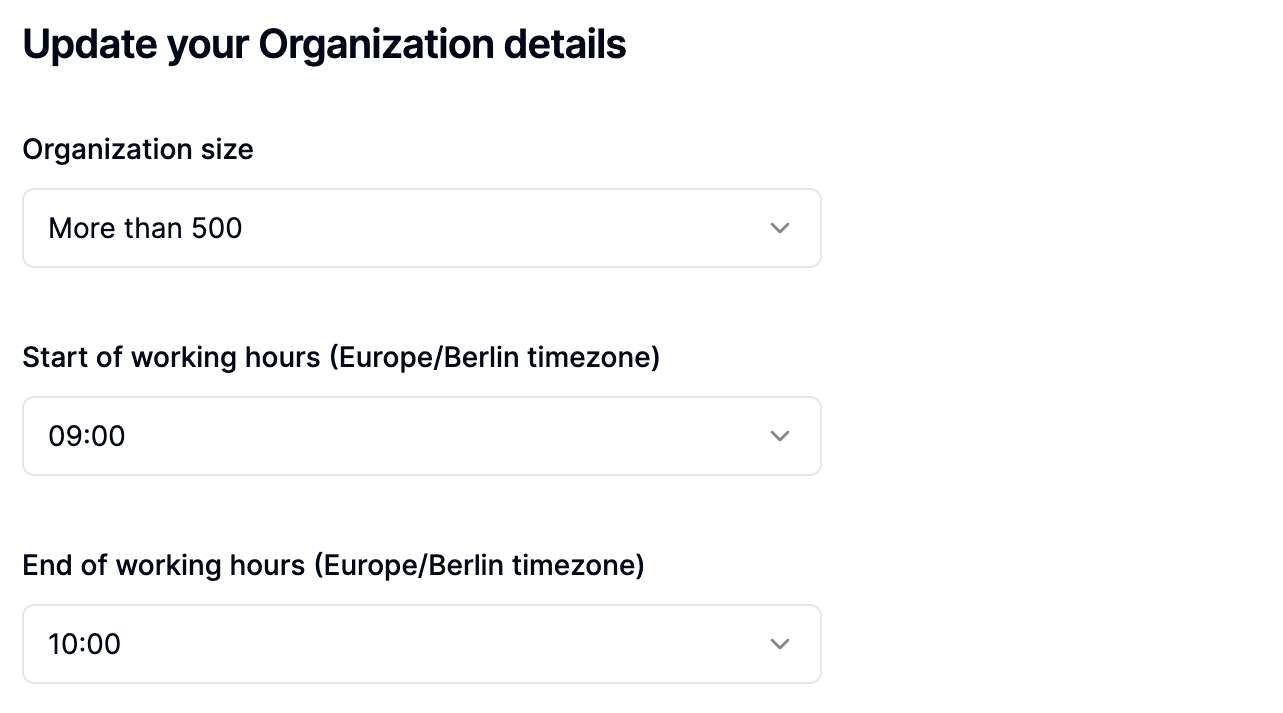
Update your organization’s details to ensure accurate configuration and management:
- Organization Size: Select the size of your organization from the dropdown menu.
- Start of Working Hours: Set the start time for working hours in the Europe/Berlin timezone.
- End of Working Hours: Set the end time for working hours in the Europe/Berlin timezone.
Select 1Password Clients
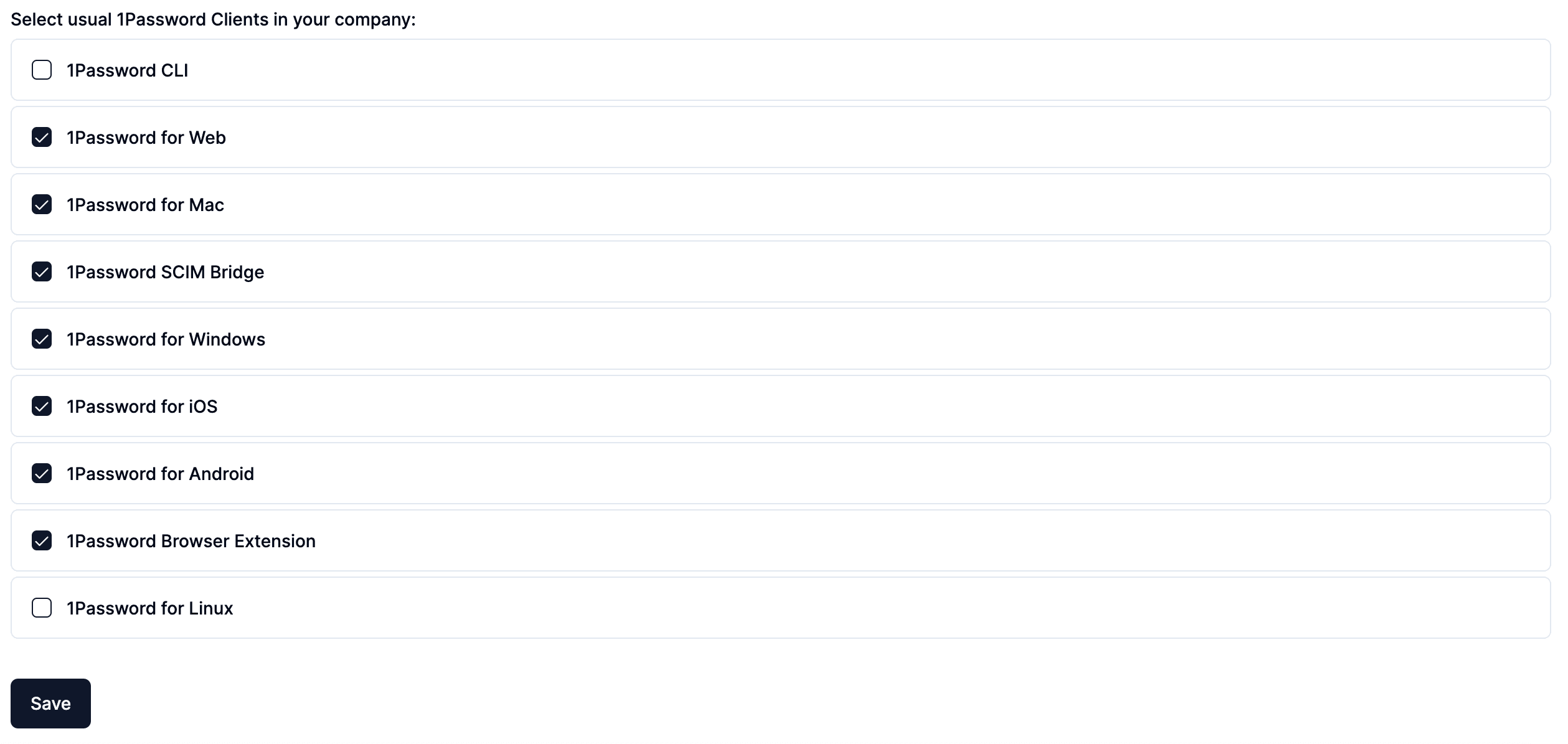
Select the 1Password clients used in your company to tailor the portal’s features:
- 1Password Clients: Check the boxes for the 1Password clients your organization uses (e.g., 1Password CLI, 1Password for Web, 1Password for Mac, etc.).
- Save: Click to save the selected clients.
Register Identity Provider
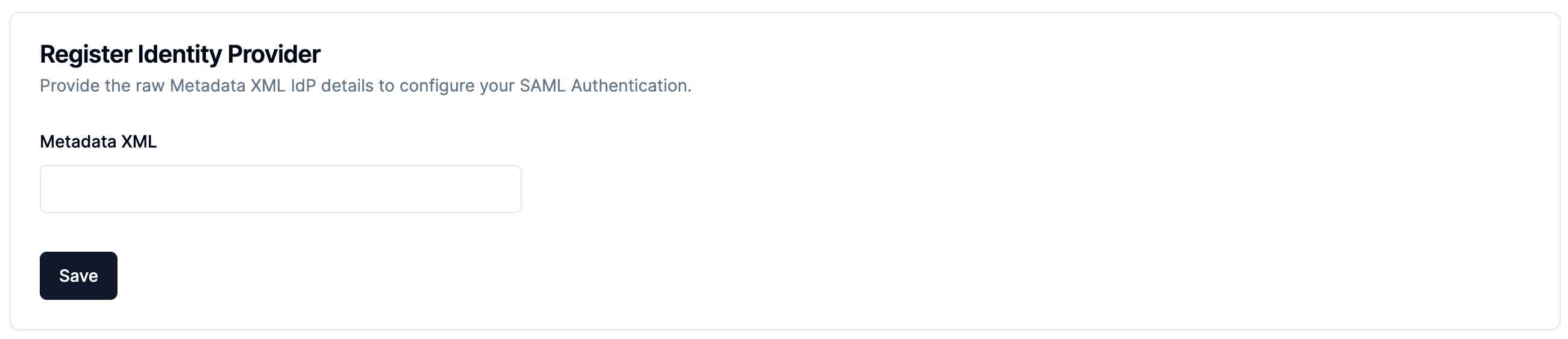
Configure SAML authentication by providing identity provider details:
- Metadata XML: Enter the raw Metadata XML IdP details.
- Save: Click to save the identity provider configuration.
Manage Your Organization
Organization Users
View and manage the users in your organization:
- User List: Displays the names and email addresses of the organization users.

Organization Invites
Manage invitations sent to users to join your organization:
- Invite New: Click to invite a new user.
- Invite List: Displays the email address, invite status, and the time since the invite was sent.
