Vaults Page
Overview
The Vaults page within the Inventory section provides a comprehensive table listing all vaults in your 1Password system. This table includes essential information about each vault, enabling you to monitor and manage vault access and activity effectively.
Table Columns
The Vaults table contains the following columns, each providing specific details about the vaults:
- Avatar: A small image representing the vault.
- Name: The name of the vault.
- Description: A brief description of the vault's purpose.
- Created At: The date the vault was created.
- Updated At: The date the vault was last updated.
- Items: The number of items stored in the vault.
- Viewers: The number of users who can view the vault.
- Activities: A summary of recent activities related to the vault.
- Findings: Any security findings related to the vault.
Row Clickability
Each row in the table is clickable. Clicking on a row will navigate you to the detailed page for that vault, where you can view more in-depth information and perform specific actions.
Actions
The Vaults page also allows you to perform actions directly from the table. One such action is assigning an owner to all items in a vault.
Assign Owner to Items
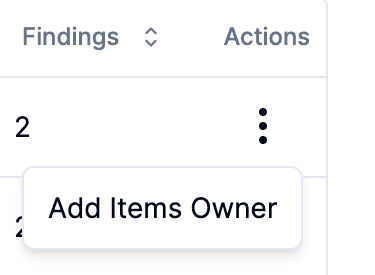
- Click on the actions menu (three dots) at the end of a vault's row.
- Select Add Items Owner from the dropdown menu.
- In the pop-up window, select the user you want to assign as the owner of all items in the vault.
- Click Set owner to apply the changes.
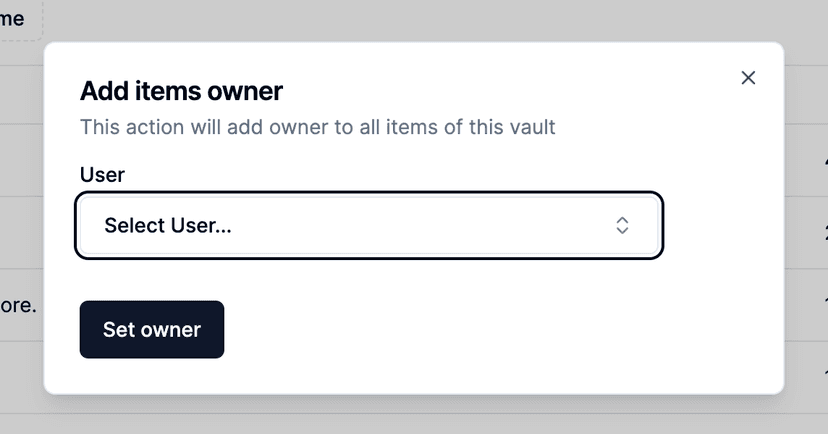
This action will add the selected user as the owner to all items within the vault, centralizing responsibility and management for those items.