Inventory Overview
Why Inventory is Needed
The Inventory feature in the Gorilla portal is designed to provide end users with better visibility over 1Password entities. This feature addresses the limitations of 1Password's native interface by offering a more detailed and organized view of your data. With Inventory, you can efficiently monitor and manage users, devices, groups, vaults, items, and external collaborators within your organization. This enhanced visibility helps in identifying potential security risks, managing access controls, and ensuring compliance with internal and external policies.
Search Functionality
Each Inventory page includes a powerful search functionality to help you quickly find specific items, users, vaults, and more.

How to Use Search:
- From any Inventory page, click the search field at the top left corner of the data table.
- Start typing your query. The search will auto-complete and suggest results as you type.
- Click a result to navigate directly to the detailed page of the relevant item, user, vault, etc.
This search functionality enables you to locate and navigate to detailed pages of the relevant inventory elements efficiently.
Hiding Columns in Data Tables
In the Inventory data tables, you can customize the view by hiding columns that are not relevant to your current task. This feature helps in decluttering the interface and focusing on the most important data.
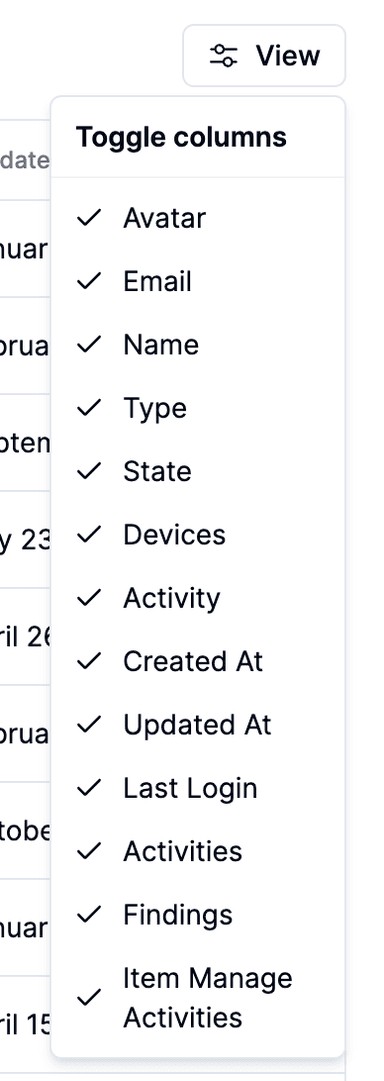
How to Hide Columns:
- Navigate to any data table in the Inventory section.
- Click on the View button at the top right corner of the table.
- In the dropdown menu, uncheck the columns you wish to hide.
- The selected columns will be removed from the view.
To restore a hidden column, go back to the View dropdown menu and check the columns you want to display again.
Filtering Data in Data Tables
Filtering data in the Inventory tables allows you to narrow down the information based on specific criteria. This feature is essential for quickly finding relevant data without manually sifting through large datasets.
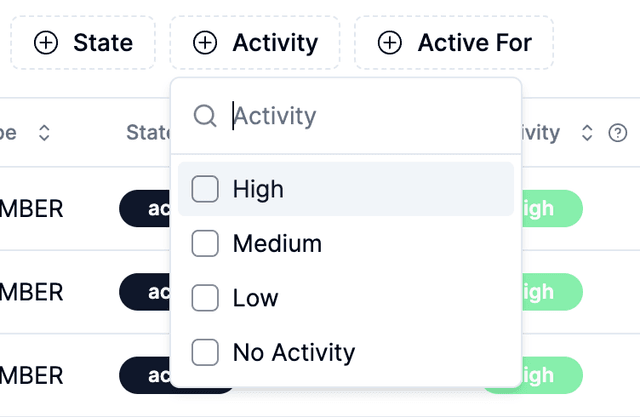
How to Filter Data:
- Navigate to any data table in the Inventory section.
- Click on the filter in data table toolbar
- Choose the criteria for filtering (e.g., user name, email, device type).
- Apply the filter to view only the data that matches your criteria.
You can combine multiple filters to refine your search further. To clear filters, click the filter icon again and select "Clear Filters."